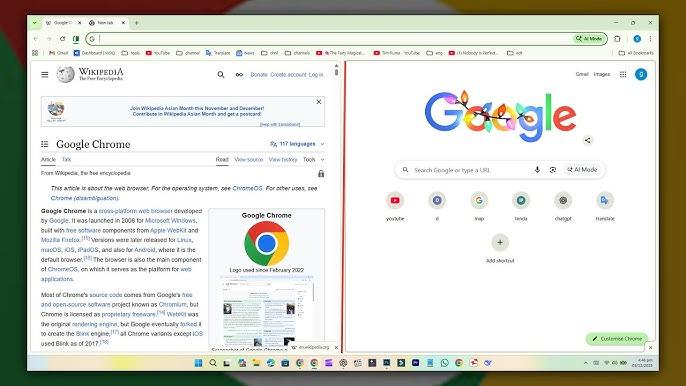
Inside Chrome Split View: A Quiet Redesign of the Browser’s Core
A deep dive into how Chrome reworks its tab model, WebContents lifecycle, and compositing pipeline to support true in-tab split view without breaking multi-process isolation.
I spent a few days peeling back the layers of Chrome’s new Split View, and the deeper I went, the clearer it became that Google didn’t just bolt on a decorative UI flourish. They quietly rewired a part of Chrome’s internal structure that has been stable for more than a decade. What looks like a simple split-pane feature is actually a rethink of what it means to be a tab.
What Actually Changed
A tab is no longer tied to a single WebContents
For most of Chrome’s life, the relationship was clean: one tab held one WebContents, which talked to one renderer process. Split View breaks that assumption wide open.
A tab becomes a layout container hosting two fully independent WebContents.
Each one has its own lifecycle, compositor surface, and renderer process. On the outside it still behaves like one tab in the strip, but inside it's juggling two siblings with the UI acting as the conductor.
It’s a subtle design shift, but it reshapes who owns composition and how Chrome’s interface marshals its content.
Multi-process isolation stays sacred
Despite the new setup, Chrome doesn’t cut corners:
- Left pane → one renderer
- Right pane → another
- Separate sandboxes, permission contexts, and crash boundaries
If one pane collapses, the other keeps breathing. The browser process simply blends two pixel streams into a single frame, maintaining Chrome’s strict process separation philosophy.
The real challenge: active-state choreography
Rendering two surfaces is the easy part. Managing focus, permissions, URL identity, the Omnibox, security indicators—this is where things get interesting.
Click the left pane and Chrome hands the controls to that WebContents delegate.
Click the right and the entire toolbar pivots instantly.
It’s careful state orchestration layered over subsystems that were never meant to operate as co-equals inside the same tab.
Why Chrome’s Split View Feels Better Than OS Snapping
OS snapping just puts two standalone windows next to each other. Chrome’s approach is more ambitious: run two mini-browsers inside one coordinated workspace.
- no duplicated window chrome
- shared cookies and session state
- lower memory overhead than two full windows
- cleaner focus and event routing
- unified keyboard shortcuts
It feels lighter because it’s designed at the browser-architecture level, not as a desktop trick.
Try It Yourself
Open:
chrome://flags → enable Split View
It’s a small feature carrying the scent of a much bigger internal redesign. The foundation is now in place—what Chrome builds on top of it will be fun to watch.